3.8
Very Good
The Best
Free Plan
No installation or maintenance
The Worst
Not the most intuitive
Not the most economical option for a WordPress site
Starting From
$15 / month
Free plan
WordPress powers a whopping 43.2% of all websites on the Internet.
The year was 2003. Apple had just launched iTunes, the first Harry Potter book came out, and two developers introduced the world to their free, open-source web app for creating blogs: WordPress.org.
Fast forward a few years, and WordPress has changed beyond recognition. You can now do a lot more than create blogs – in fact, the code that makes WordPress powers a whopping 43.2% of all websites on the Internet.
Meanwhile, the founders also launched a for-profit business using that code. This is where WordPress.com comes into the picture, and as you’ve guessed it, it’s not free (although there is a free version). Learn more about the differences between WordPress.org and WordPress.com further down below.
After several rounds of pricing changes, WordPress.com has now settled on offering four paid plans targeting personal, blogging, business, and ecommerce users. These plans range from basic and affordable (starting at $4 per month), to offering the full gamut of plugins and features (priced at a significantly higher $45 per month).
So is there an advantage for you in using WordPress.com’s paid version? Or should you stick to using the free software yourself? Let’s break it down in detail below.
WordPress.com Review: What to Expect
WordPress.com is a hosted website builder that uses the free WordPress software. You can create blogs, websites and online stores without much technical knowledge. While it offers a free plan to let you publish a basic website, upgrading to paid plans will give you more features - and the more you pay, the more you get.
Let’s take a closer look at WordPress.com’s pricing, and what’s included in each of its plans.
Screenshots from Wordpress
WordPress Pricing
Monthly prices for 1-year contracts; Domain included in selected packages.
Tip: Save 10% using discount code “TAKE10”. Applies to monthly and yearly plans.
Which plan should I choose?
No Wix review would be complete without a close look at the pricing:
The Light plan is the top choice for setting up a regular website (without selling online). It’s ad-free, includes a free domain name for a year, and offers enough storage for most users. Find out more in Wix’s pricing guide.
Rating Details
Signing up is straightforward but even the new editor isn’t yet as intuitive as Weebly or Wix. There are certain WordPress specific quirks – like the complicated way menus are created – that take away from the user experience. It’s improving with every new version, though.
Free themes are available. For premium or custom themes, you’ll need the Premium plan or higher. Overall, theme customization is harder than with a classic website builder.
Users will see a WordPress.com banner in the header and a small text branding in the footer. Ads are removed on all paid plans.
The service is available in English. You can change your backend interface to another language. For a multilingual website, you’ll need a plugin like WPML. (Requires the Business or Ecommerce plan).
A free standard domain is offered in the first year. Renewal is about $18/year. Email hosting is not included. Requires an external service like Google Workspace or Namecheap.
In theory: no limitations. It only depends on your chosen theme.
Some widgets are included (newsletter sign-up for Mailchimp etc.). Plugins are even more powerful but require the Business or Ecommerce plan.
WordPress.com offers a native mobile app for iOS and Android. It lets you create and edit your website right from your smartphone or tablet. You can enter statistics, manage posts and upload media files too. When we tested the mobile app, we found it to be an easy-to-handle and intuitive mobile app with a clear design.
Lets you add the free WooCommerce plugin to your site on the Business and Ecommerce plans. If you want to learn more about WooCommerce, check out our detailed review.
Limited out of the box. You’ll need a plugin like Yoast SEO to get full control (Business or Ecommerce plan required)
Since WordPress has its origins in the blogosphere, there are basically no limitations.
Adding a standard form isn’t a problem. If you need more advanced features, you can install a plugin like Contact Form 7.
You can protect every page with a password. Also, WordPress is great to give users different roles with rights (subscriber, administrator, etc.). Plugins for membership areas can be added too with the Business or Ecommerce plan.
A newsletter tool is not included. However, if you are with Mailchimp, you can add a sign-up form. Other providers can be linked via HTML or plugin.
Not a problem. The HTML block allows you to add external code.
Very generous on the paid plans (but less so on the Free plan). Standard projects won’t struggle with too little space. Another plus: no bandwidth limit for visitors or file transfers!
1 GB - 200 GB
WordPress automatically saves 25 revisions of each post and page. Therefore restoring lost content isn’t an issue. If a plugin should crash your website, you can directly contact support.
One of the biggest advantages of WordPress.com is the direct support. In the free open-source version it’s not included. The live chat support could solve our issue very fast. Beginners should check out their helpful video library.
We have seen simpler web builders, but thanks to the new block editor, it has gotten much easier to use. Every new WordPress update seems to improve the overall experience.
WordPress.com is the easiest way to run a WordPress website that comes with dedicated support. Unfortunately, it’s also a pretty expensive one as only the Business and eCommerce plans unlock its full potential.
How does WordPress.com work?
Okay, let’s talk about the AI tools WordPress.com has added. If you’re looking to speed up your writing, the Jetpack AI Assistant is built right into the editor. It’s pretty handy for getting past writer’s block.
They also have an AI Website Builder. You give it some prompts about what you need, and it can generate a basic site structure and maybe even some starter content for you. It’s aimed at making that initial setup process much quicker, especially if you’re new to this.
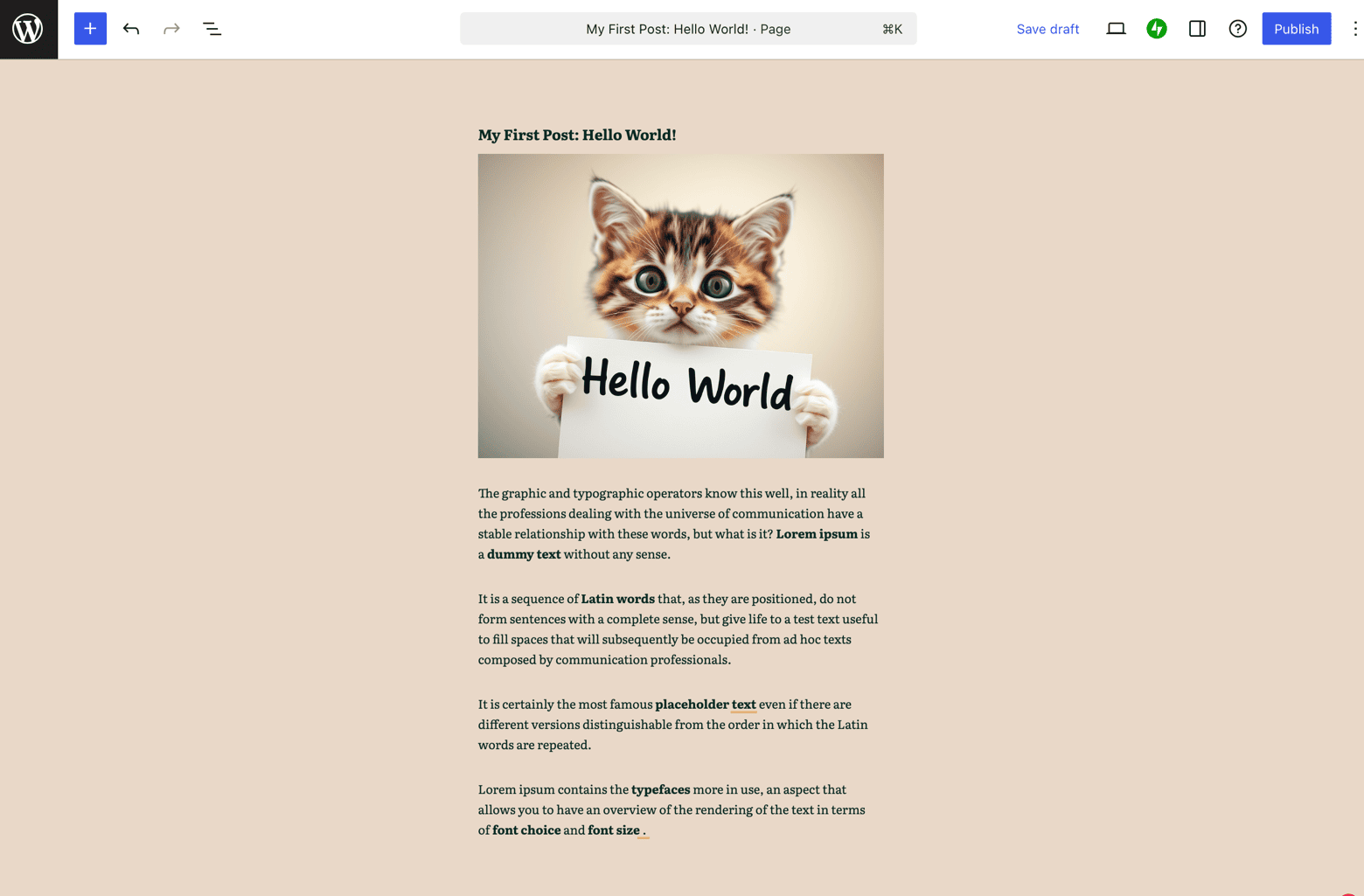
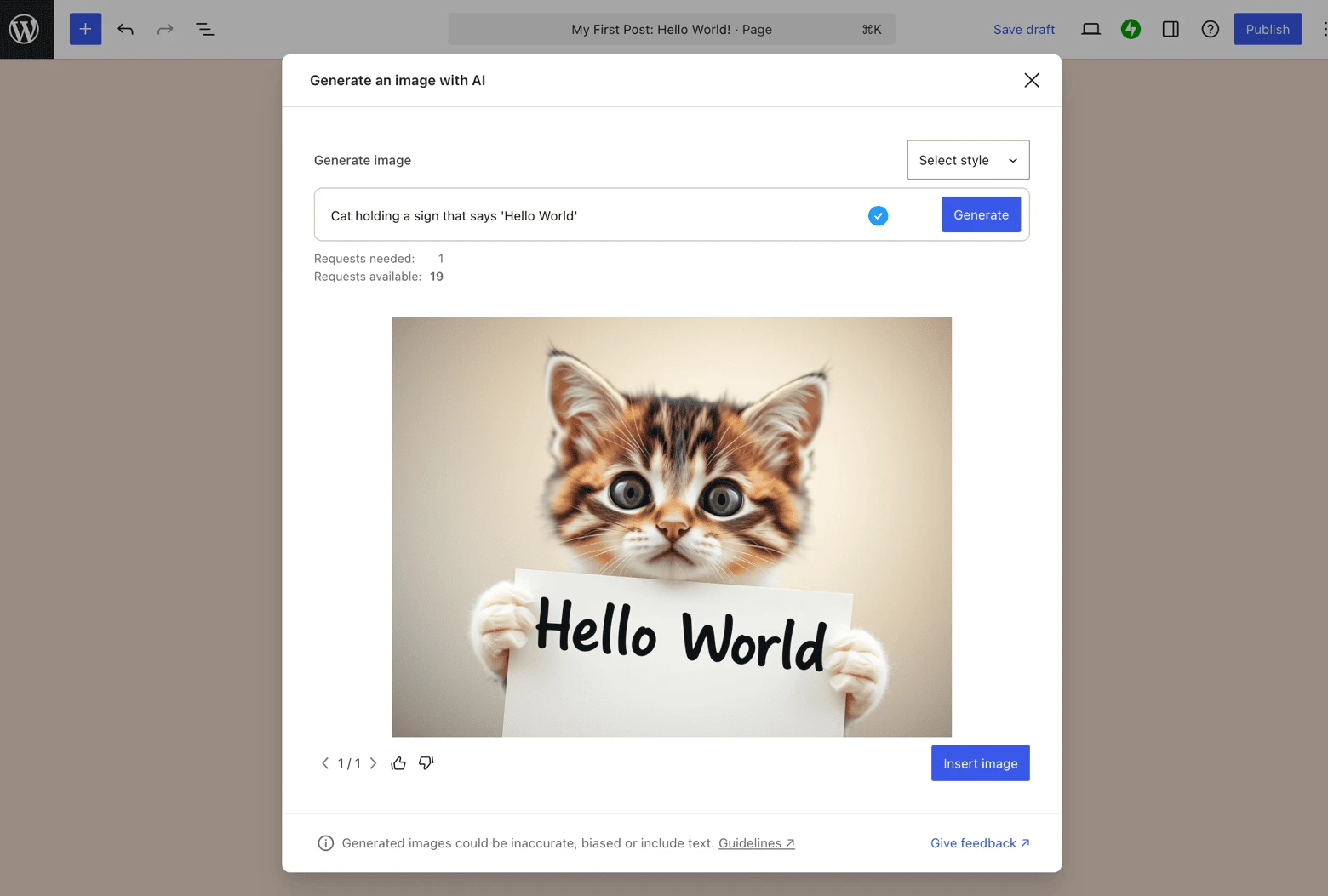
Adding unique visuals is simpler now as well. WordPress includes AI tools that can generate custom images for you directly within the editor, making it easy to illustrate your posts and pages.
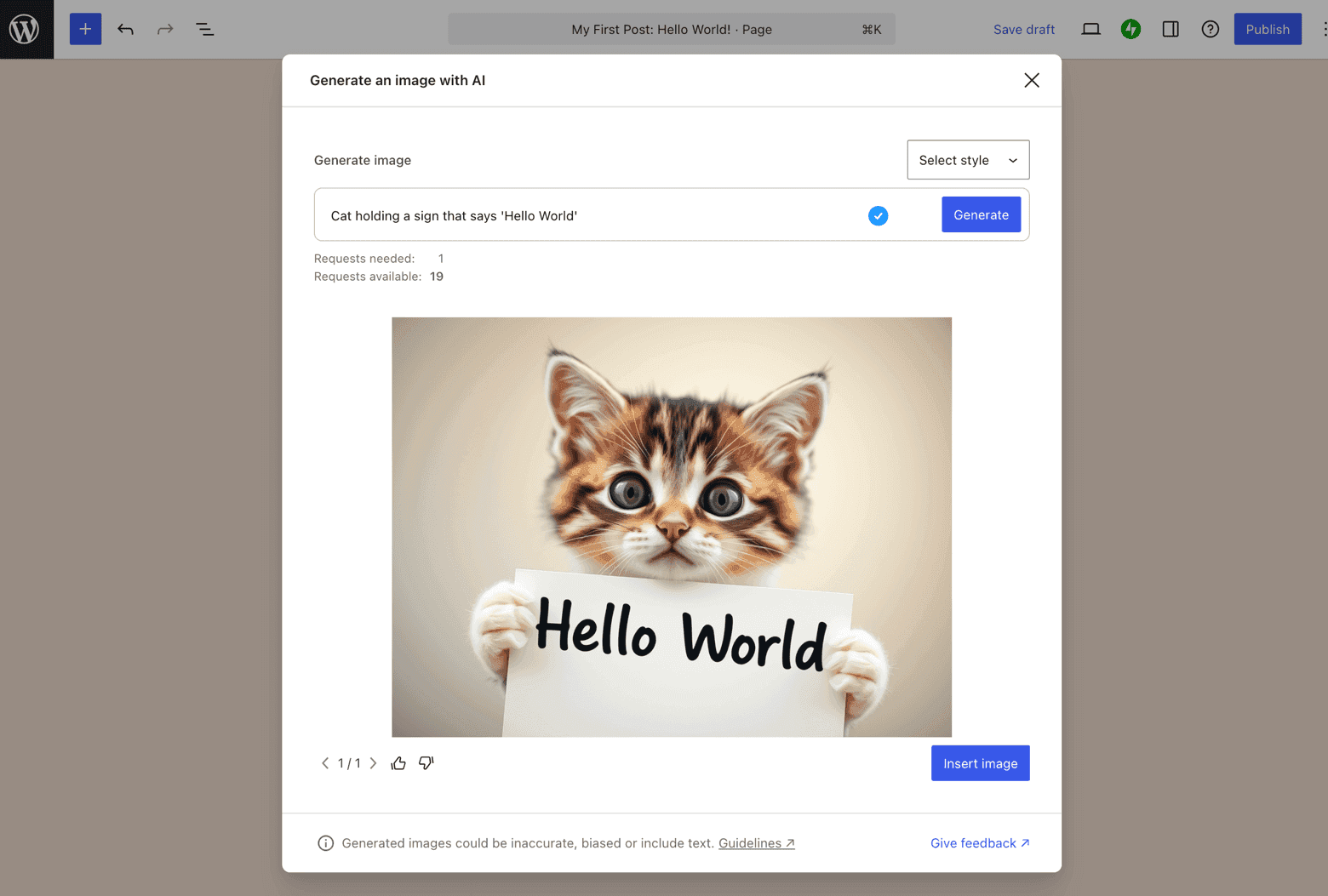
AI WordPress Image Generation
You’ll find AI tools like these becoming standard across the web now. They’re included to help you work more efficiently, whether writing posts or setting up your site. Do bear in mind, however, that the quality of what the AI generates can differ quite a bit, depending on the topic and the instructions you provide.
You sign up for free, choose a theme, and start editing your website by adding pages and content. Then you can choose to stay on a free plan, or pay a monthly fee to use more features and connect the site to your own professional domain.
It’s worth noting at this point that WordPress is sometimes called a CMS or Content Management System. But because WordPress.com allows you to build and host entire websites, I’ll stick with the “website builder” name.
The main concept to understand is that WordPress was originally a blogging platform, and it still relies on the same format:
Pages: usually static content like an About Us page
Posts: blog posts, news or regular updates. You can use tags to group them, and they usually appear in reverse chronological order.
What’s the Difference Between WordPress.com and .org
Great question. We’ve written a complete guide on the differences between WordPress.com and WordPress.org here, and you can see an explainer video below:
But the main points to remember are:
WordPress.com | WordPress.org | |
|---|---|---|
Hosting | Included in price | Need to buy it elsewhere |
Domain name | Free the first year, you’ll need to renew it later ($18 – $65 a year) | Not included |
Included for 3 months only, around $3.50 / mailbox / month thereafter | Not included | |
Installation and updates | Automatic | Manual (or done by your third party hosting provider) |
Pricing | Can be free, but for an ad-free site on your own domain, you’ll be paying between $4 to $45 per month | Completely free to download and install. |
Features and plugins | Restricted on Free and lower-tier plans. You’ll need the Business or Ecommerce plan to access plugins | All available |
Website templates | Free themes available on all plans. Premium and customizable themes require at least the Premium plan | All available |
Support | Email support available on all plans. Live chat support available on Premium plan and higher | None |
What About That New Editor?
As of late 2019, WordPress changed the way you add and create content on your site. It used to be through an editor called TinyMCE, a.k.a the Classic Editor. It was pretty much a text editor – great for writing posts, but not so great for complex pages (unless you knew how to code or relied on 3rd party plugins).
The new editor is called Gutenberg. It’s much more friendly to beginners as it uses blocks to add text, media or any other kind of content. It comes installed by default, but if you’re used to the Classic editor, you can still revert to it whenever you want.
Signing Up
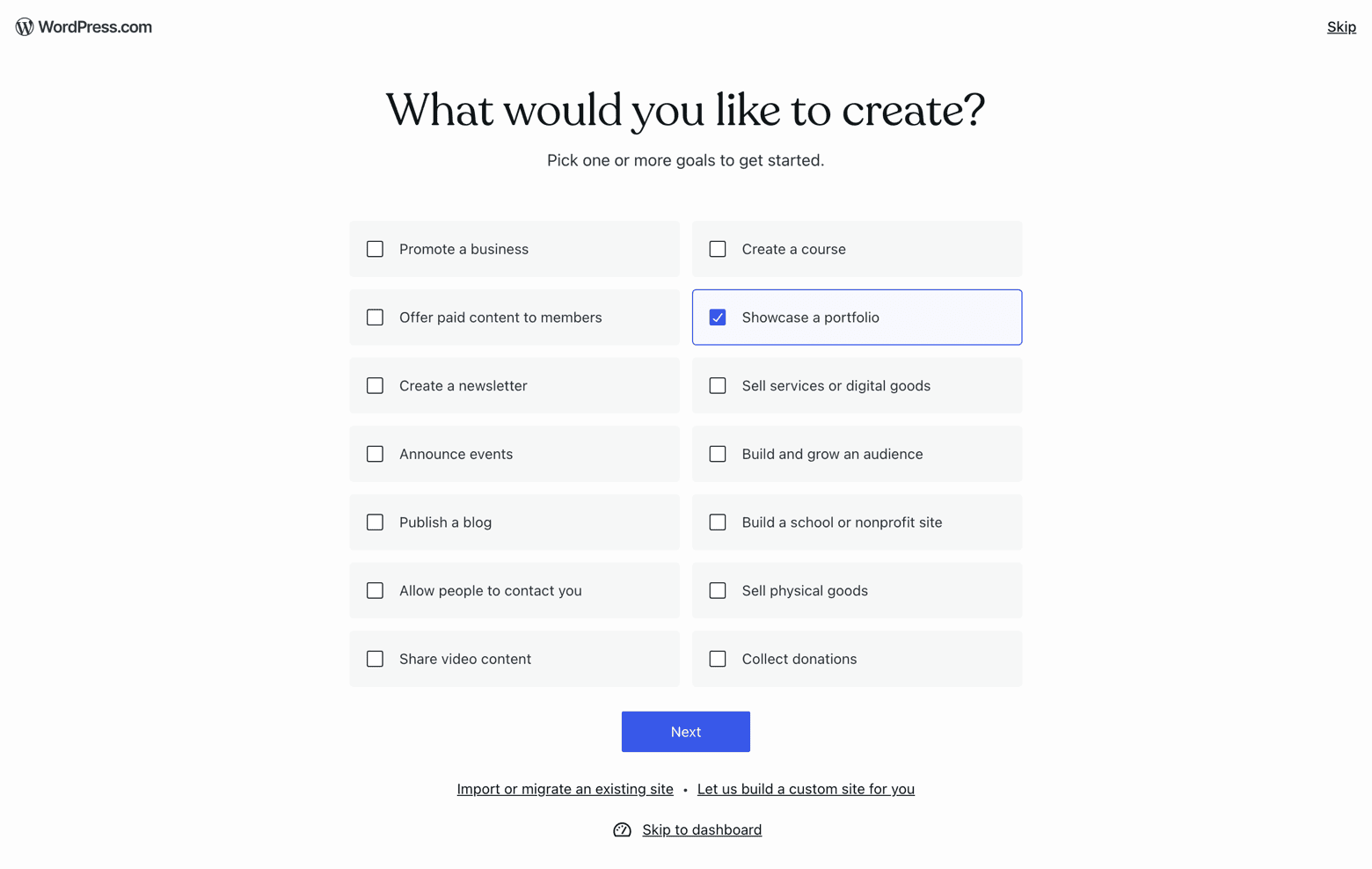
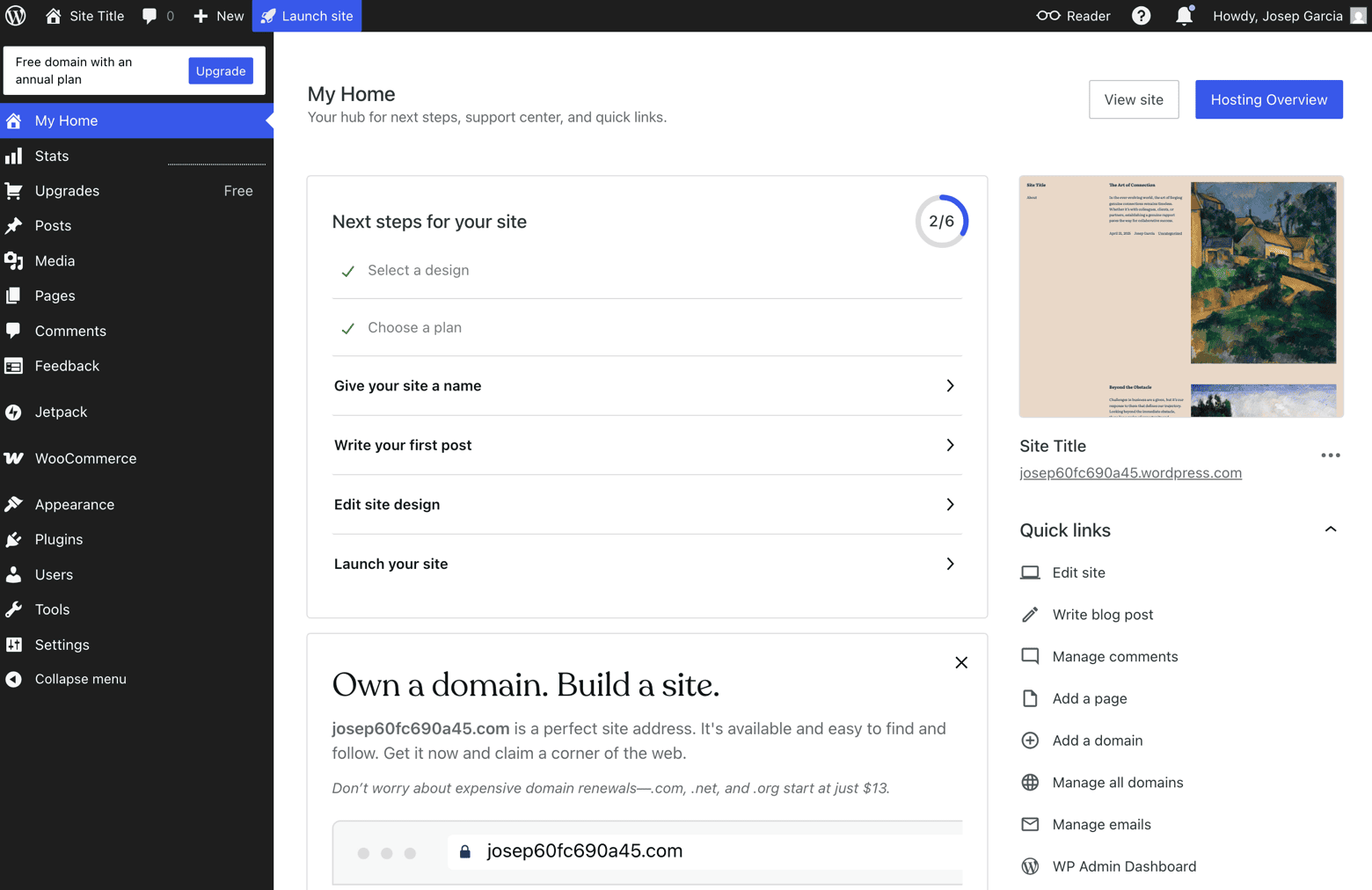
Getting started with WordPress.com is as straightforward as it gets. You don’t need a credit card, and your whole basic website can be set up in 6 steps.
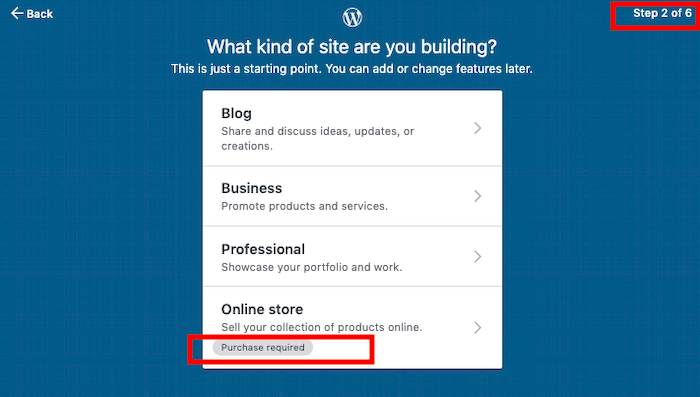
The steps are very broad (no design or SEO options yet), but it feels good to get something done in less than 10 mins.
Two major downsides: you can’t test the eCommerce option for free. They’re also a bit pushy about upgrading to a paid plan as soon as you login, but hey – can’t fault them for trying to make money.
Ease of Use and Getting Started
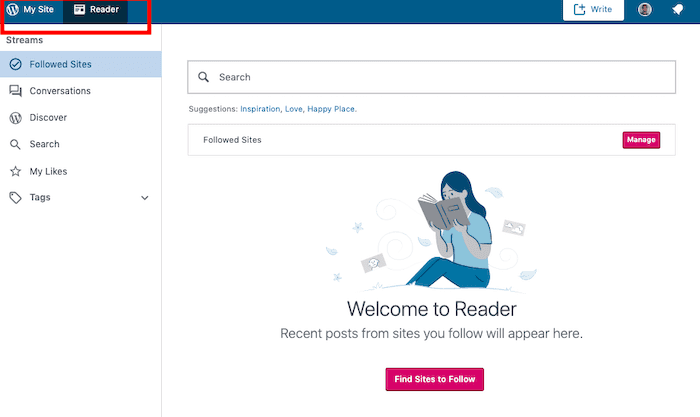
When you first create a site, you’ll be met with a page called Reader, where you can find news about other websites.
Okay – not the most useful thing to start with. I’d rather just dive into the editor, which you access by clicking My Site in the top left.
As noted earlier, the Gutenberg editor is automatically activated. It makes it easier than before to add content like text and media via what they call “blocks”. It’s really a beautiful editor with tons of space for text and images.
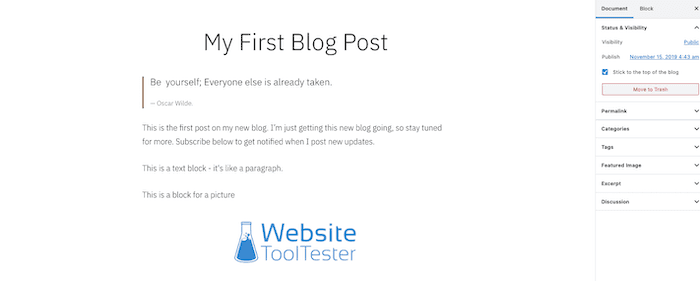
If you’ve used Squarespace before, it looks kinda similar. Adding more complicated elements like tables, buttons or signup forms is just as easy as text. No need for code or plugins (like with the old editor), and you can even edit the font colors without code.
One thing to note: you still need a basic understanding of how WordPress handles Pages and Posts (see all the way at the top of this review) to really feel at home here.
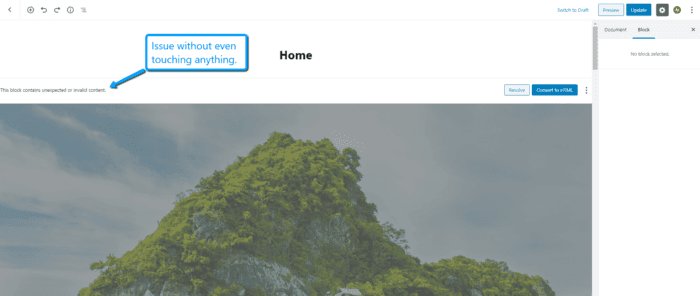
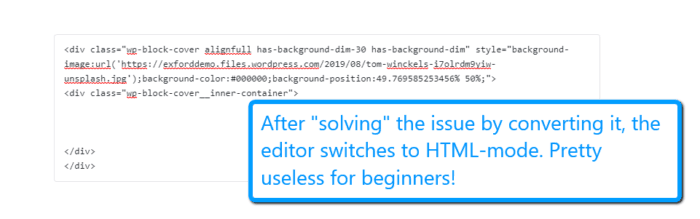
There can also be troubleshooting issues that will be baffling to complete beginners, for instance when the editor switches to HTML mode.
Designs, customization and Themes
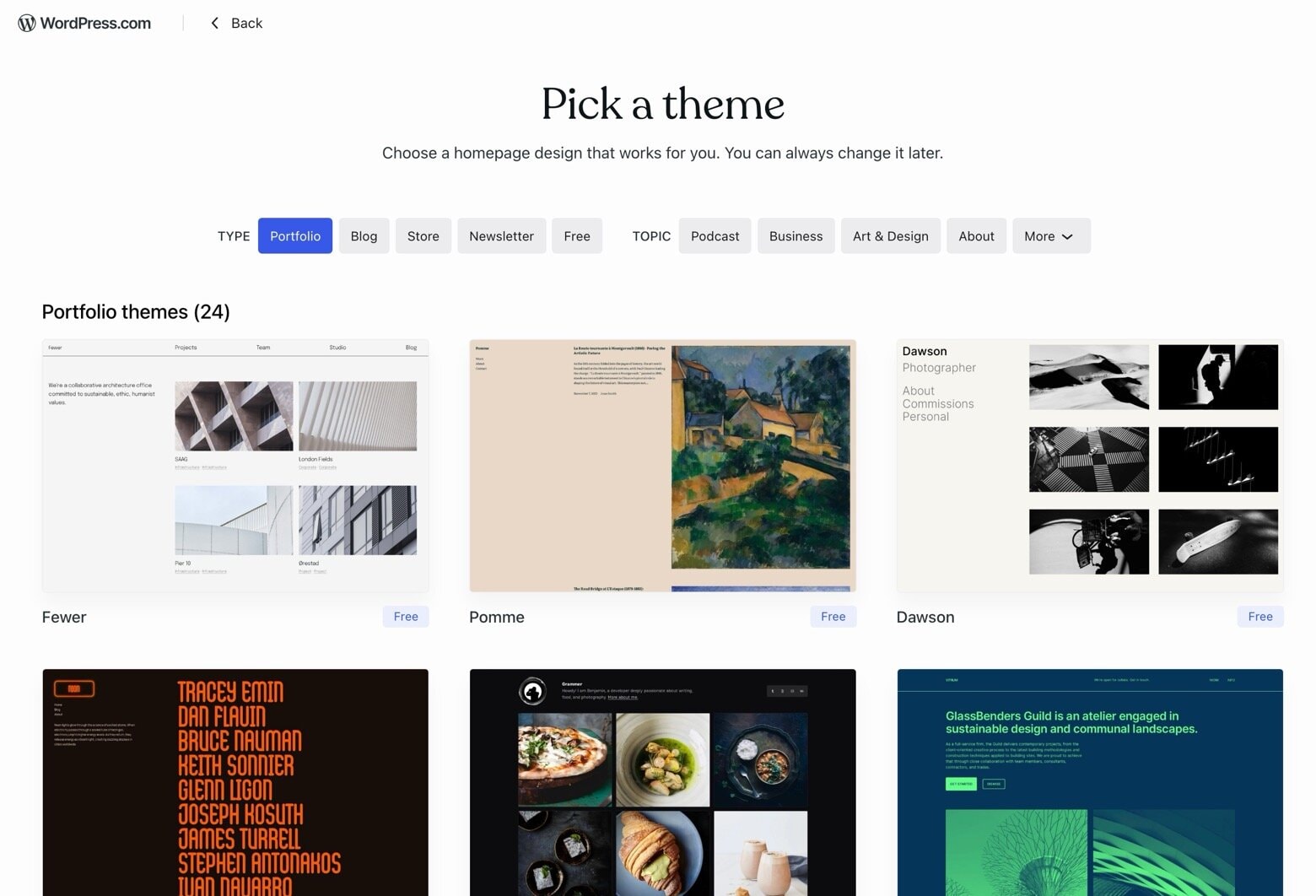
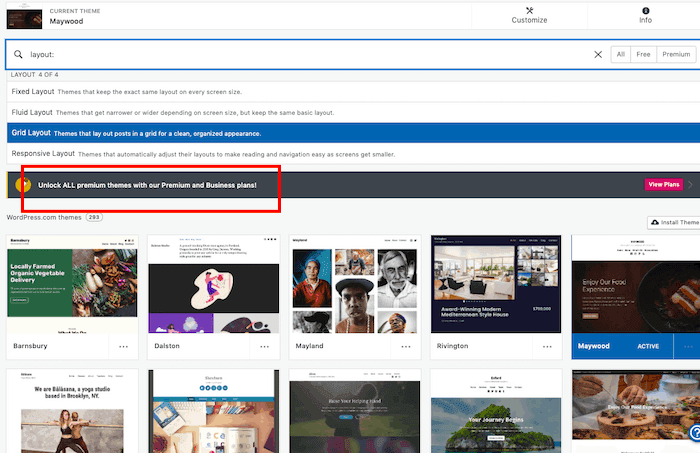
WordPress.com has, at the time of writing, 293 themes, both free and paid. They are grouped in 28 categories such as Art, Blog, Fashion, Magazine or Photography. You can also search by feature, style, number of columns, and layout.
A few notes:
You can’t create sitewide changes or add CSS with the free plan.
To purchase their official premium themes, you’ll need the Premium plan at least.
You can unlock more custom themes (from third-party places) with the Business and eCommerce plans
Then the amount of customization options is completely dependent on the theme itself. In fact, popular themes like Avada or BeTheme act as “modular theme builders”, so you can create many variations with the pre-selected elements.
Final point: if you want to code (or hire someone to code) a unique theme, it’s possible. Be prepared to spend a lot of time (or money).
Plugins and Add-ons
One of the greatest joys of playing around with a WordPress site is the ability to customize it with plugins. As I write this, there are close to 60,000 free and premium plugins available.
Now not all of them are top-notch. Anyone can upload a plugin to the store so it’s always important to read the reviews and check compatibility because they might crash your site. But still, there’s so much you can do with plugins:
Create a multilingual website
Control your SEO options
Use exit-intent popups
Add beautiful contact forms
Transform your theme
And much, much more…
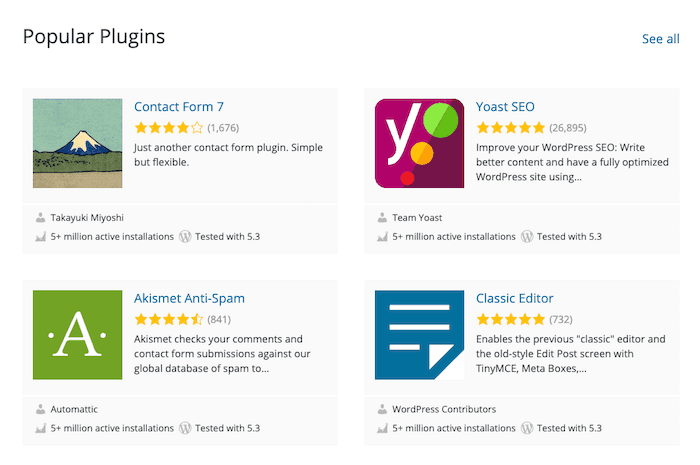
The bad news is that plugins are only available on the Business and Ecommerce plans. So, what is arguably WordPress’s best feature is only available if you pay a premium.
Can I build an online store with WordPress.com?
Yes, you can! The WordPress.com Business and Ecommerce plans let you install the free WooCommerce plugin, which will let you add an online store to your site. It will also allow you to:
Sell unlimited physical and digital products
Embed products anywhere on your site
Display product ratings and reviews
Take payments via various payment methods (Stripe, PayPal, credit cards etc)
Offer various shipping options and set manual rates
Automate tax calculations
Set up customer accounts and guest checkout
Send automated emails
However, for advanced functionality (e.g. live shipping rates, advanced customization, full range of payment methods), you’ll need the Ecommerce plan – which, at $45 per month, isn’t cheap. You could use the WooCommerce plugin on a site of your own for around $12 a month, for instance with Siteground instead.
Marketing and SEO options
Generally speaking, with WordPress, if the feature you need isn’t already included with your theme, it comes in the form of a plugin. There is a nice out-of-the-box integration with Mailchimp so visitors can sign-up for a newsletter, but if you want to use another service, you’ll need to install a plugin.
This is also true of other email marketing integrations, popups and discount offers, or specific analytics tools. Once again, in order to install these plugins, you’ll need the Business or Ecommerce plan.
Let’s take a quick look at what marketing features are available with WordPress.com.
The SEO Options
While you can index your site (or choose not to) with any plan, the ability to optimize the SEO-title or descriptions is limited to the Business and Ecommerce plans. To get the most out of WordPress’s excellent SEO capabilities, we’d recommend installing the Yoast SEO plugin.
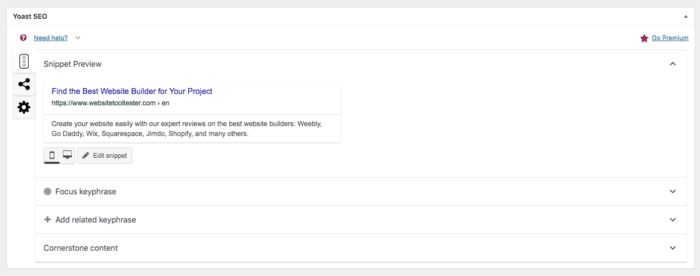
Optimize your title and description with the Yoast SEO plugin.
This is a huge drawback of using the Personal or Premium plans for a blog, portfolio or small business. I find it particularly hurtful because WordPress, as a whole, is probably the best tool to use for SEO options in general.
Google Analytics
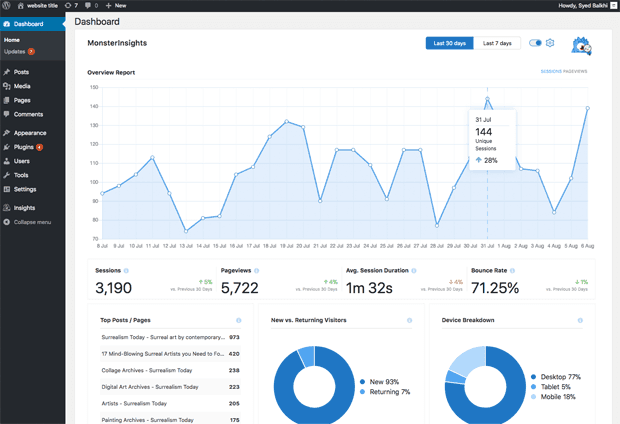
Getting data about your visitors and site performance is another feature I believe anyone should be able to get. With WordPress.com it only comes with the Premium plan or higher.
Monetization options
You can receive single payments or donations on any of the paid plans. On the Premium plan and higher, you can add a block to accept one-time payments via PayPal for physical or digital goods, services and donations.
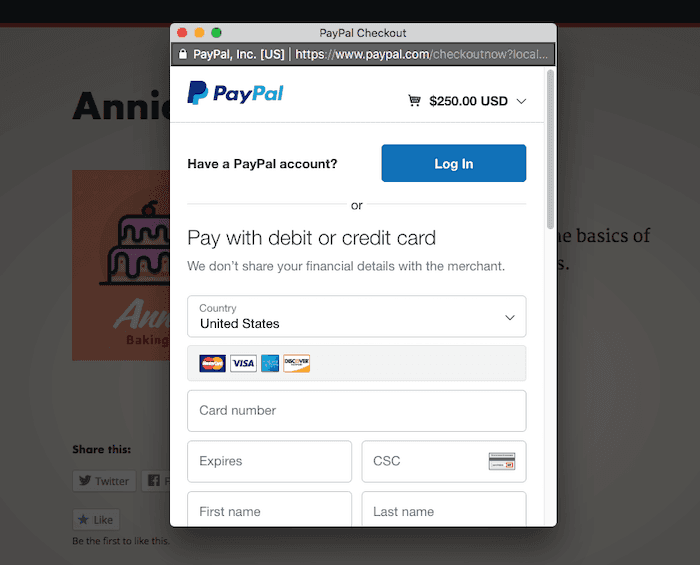
It’s great for nonprofits and creatives. Also much easier and cheaper than setting up an entire WooCommerce store.
Recurring Payments
You can also charge recurring payments for memberships, subscription offers or Patreon style sponsorships. Contrary to all the other pro features, it’s available on all plans.
Ad Networks
Not to be confused with Google’s famous AdWords program (which you can also enable), the one for WordPress is called WordAds. It’s available – you guessed it – on the Premium plan and higher.
There are a few ad placement options, but unlike AdWords, it’s not always targeted stuff related to your website’s content. You do not have the option to vet advertisers either. In short, it’s not as sophisticated or flexible as Google’s ad programme, but at least it’s very easy to enable it.
Affiliate marketing and referrals
Supported on all plans. There is even a WordPress.com guide on how to get started with Amazon Affiliate links. We also think that WordPress is the best website builder for affiliate marketing.
The WordPress App
If you feel more comfortable working with apps rather than websites, you can download the WordPress Desktop app, available for Win7+, Mac OS 10.9+ and Linux. There are also iOS and Android versions.
How does it work? It creates a local copy of the site on your computer and lets you edit, update, and upload things from there.
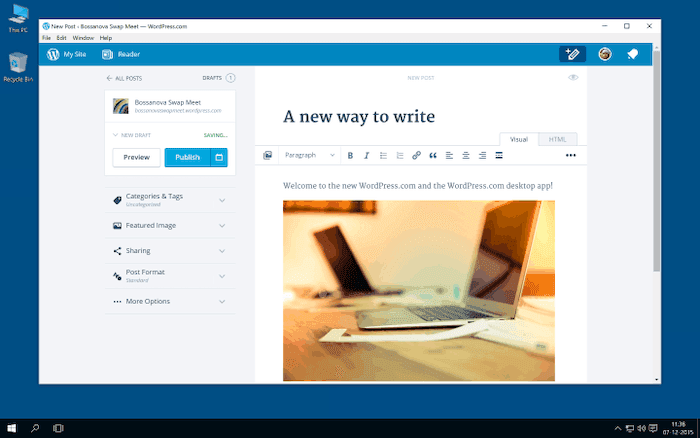
But…. it doesn’t work offline or as a staging environment. So forget about writing a post on the train or holiday and pushing it live when you reconnect to the modern world. The company sells it as a “distraction-free” way to work, but I don’t really see the point – until they start offering offline or staging option.
Support and Troubleshooting
Usually, if you install WordPress by yourself, you’re on your own. There is no official support, and you have to find answers in community forums. It can be tedious, slow, and frustrating. And trust me, things will break, especially when third-party plugins and software updates are involved.
So one of the biggest advantages of paying for a WordPress.com plan is that dedicated support is included. Best of all, in my own experience, the live chat response was fast and helpful. And best of all, they even tried to help with help for 3rd party plugins, which is unheard of with support for other website builders.
Here’s what you get:
Good video tutorials
FAQ
Email support on all plans
Live chat support on Premium plan and above (24/7 support is available for Business and Ecommerce)
No phone support
Note that there is no personal support on the Free plan – you’ll need to rely on Forum support and your own research if you need help.
Hosting, Storage and Security
WordPress.com is very generous when it comes bandwidth (which is unlimited), but limits your storage depending on your plan.
For storage, you get 1GB with a free plan, and up to 200GB on the higher-tier plans. That’s a big amount of data, so probably good enough for websites who want to host their own videos instead of streaming them from YouTube or other platforms (with the Premium plan minimum).
SSL and Firewalls
Security encryption is enabled by default on all pages, at no extra cost. You also get a built-in firewall to fight account takeovers (when fraudsters try to log into your account), and 2FA option (2 factor authentication) to increase security.
Interesting fact: white hat hackers (the good guys), can look for bugs or vulnerabilities in the WordPress code and be rewarded with a bounty thanks to the HackerOne program.
Backup and Recovery
There is a useful autosave function for when you work on posts, which lets you restore previous content as needed. For site-wide backup and recovery, it’s best to use a plugin like the WordPress Backup plugin or BackupBuddy. As you’ve guessed by now, it’s only possible with the Business and Ecommerce plans.
But you can also contact support and they might be able to help you there.
Staging
Staging is an advanced feature that lets you run an offline version of your site. It lets you make changes to test, for instance, if anything breaks when you add a new plugin. When you’re happy with the results, you can push the changes to the live version.
It’s a really useful feature with the more advanced WordPress hosts, where one small change in the theme code or plugin update can completely break your website.
But… it’s unavailable here, sadly.
Site Migration
If you like what you’ve read about WordPress.com, maybe you’d like to import a site from another platform? It’s possible thanks to the Import / Export function for:
WordPress.org sites
Blogger
Wix
Squarespace
And more…
These tools can save you time, but they never make for completely smooth sailing. When I imported a test site from Wix, it was broken beyond recognition, so I still had to manually edit a lot of the content to fit it in my theme. I imagine the same problems might arise when exporting the site to another platform.
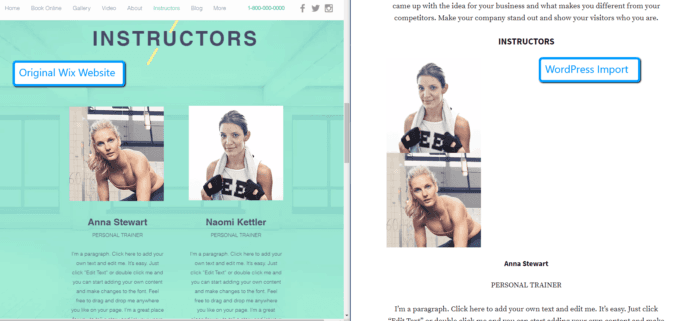
In fact, that little experiment made me realize how much easier Wix is to deal with. If you’re considering both options, don’t forget to check out our in-depth Wix vs. WordPress test.
Review Conclusion – Is WordPress.com Worth It?
I’ll start by answering the original question posed in the title of this review: what are you paying for exactly with WordPress.com? Essentially, this:
Ease of installation
Quick start
Peace of mind for security and maintenance
Quality support
Hosting
The block editor and pre-selected plugins also all offer a smooth user experience that finally makes the WordPress software more accessible than ever.
While their recent pricing changes have caused a lot of confusion among users (and us here at Tooltester!), it seems they are firmly set on sticking with their current plans. While the Free plan is a good option for testing WordPress.com out, we’re disappointed that features are so severely limited on the lower-tier plans.
You’ll have to go up to $25 a month for a Business plan to really enjoy the full benefits of the WordPress platform, and even then you don’t have staging or email hosting. Not the best bang you can get for your buck.
But still, I can absolutely see how WordPress.com makes a lot of sense if you’ve always wanted to try this powerful platform, but weren’t ready to dive into the technical details and possible headaches of self-hosting.
FAQ
Is it possible to monetize my WordPress.com site?
You can’t run ‘WordAds’ ads with the free plan, but it is possible with the Premium Plan. WordAds is Automattic’s version of Adwords. But you are also free to add affiliate links or accept sponsored posts etc.
WordPress.com Alternatives
If you are looking for an easier WordPress alternative, Wix gets the highest score from us. If a blogging feature is essential for you, Squarespace is the top website builder to look at.
Webflow is definitely not easier to use than WordPress, but it is extremely popular with designers as it gives you full freedom.
Find our full list of WordPress alternatives here.